Luch on Steam Deck
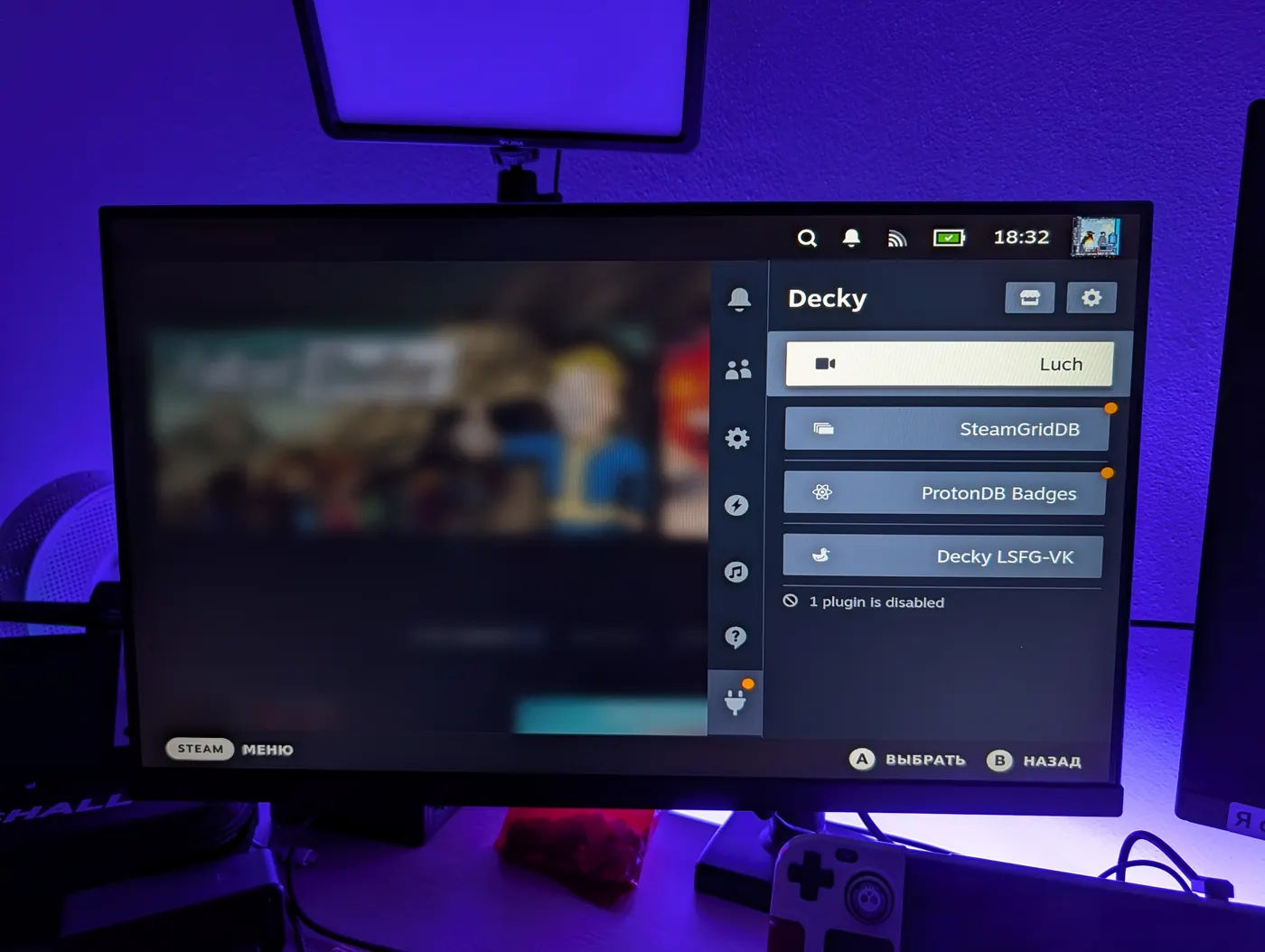
Download a shortcut, run it, type the password. In Game Mode the Luch panel appears in the quick menu ("···", the Decky tab): pick a TV, press, and you are showing.
The Last Campfire on the TV, the Deck in hand: the Deck's screen goes dark while the show runs. Click the video to open it full screen.
 Luch
Gaming Mode
Installation
Switch to Desktop Mode
Press the Steam button, "Power", "Switch to Desktop". Everything else is done there, in the Deck's browser.
Download the "Install Luch" shortcut
This is a small shortcut, like the one for Decky Loader: it downloads the installer itself (the Flatpak app
toxblh.luch.Luch, about 4 MB), checks the checksum, installs it and starts the setup. It downloads from ALS, and if ALS is unavailable, from GitHub (the shortcut tries both in turn). Direct links: ALS, GitHub.Run the shortcut with a double click
The file appears in "Downloads". If the system asks whether it may run it, allow it. The installer window opens: the system asks for the administrator password once (the Deck password), then a window with the Luch logo shows the stages: updating Decky Loader, installing the plugin, installing Luch, checking that it works. At the end Plasma flickers for a second: the Luch widget appears in the tray.
The same from a terminal:
flatpak run --command=luch-setup toxblh.luch.LuchClick "Finish" and go back to Game Mode
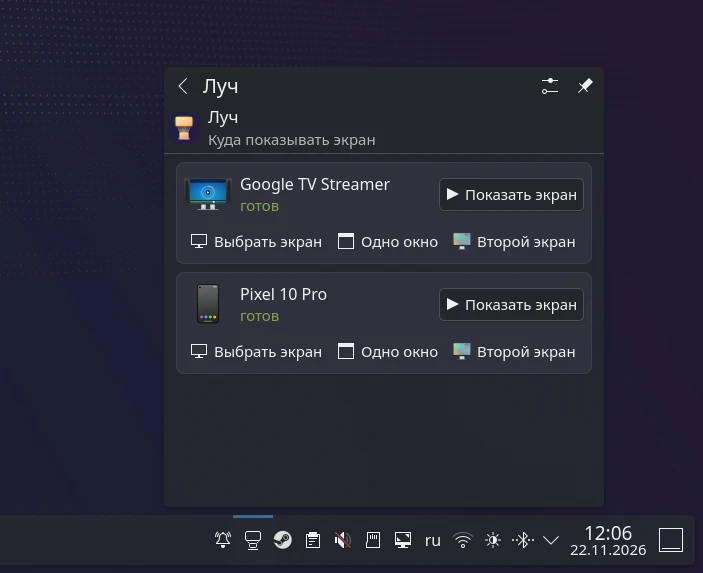
In Game Mode press "···", the Decky tab, the "Luch" row. On the desktop the widget in the tray does the same: click the icon, pick a TV, press "Show screen".
The installer leaves a "Luch" shortcut on the desktop. If you run it (or the downloaded shortcut) again, it asks what to do: "Reinstall" (the latest version is downloaded) or "Remove".
What is in the panel
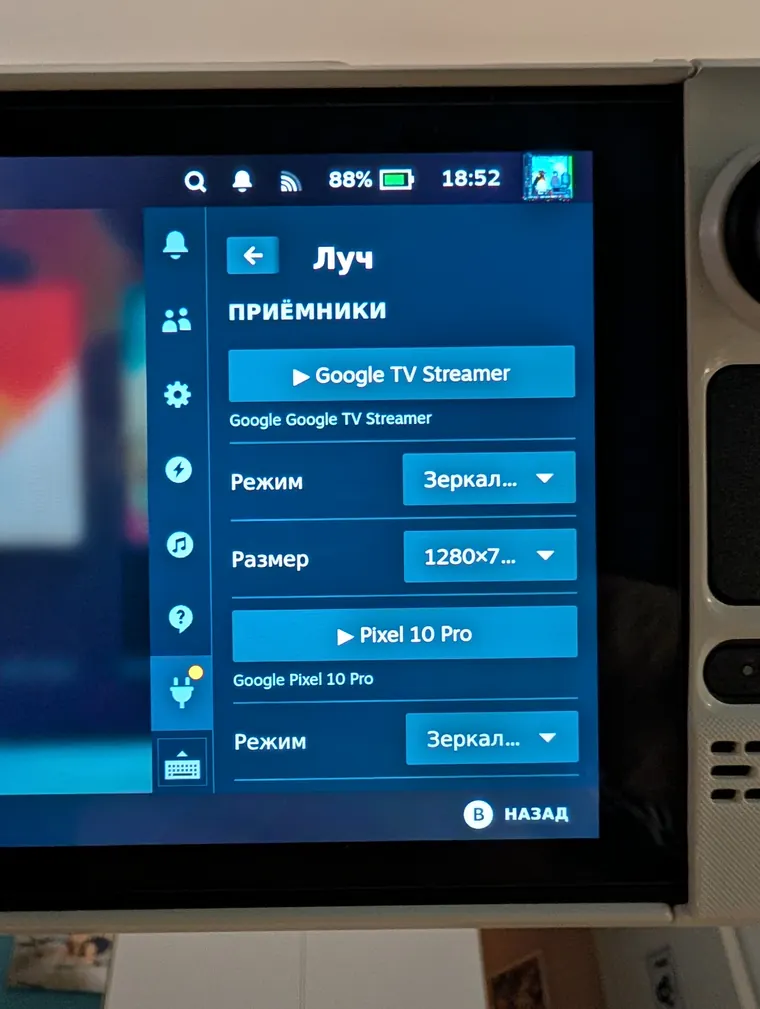
Receivers
The list of devices on the network. Pressing a name starts or stops the show.
Mode and size
Fast mirror, 16:9 mirror, pick a screen, one window, a second screen. The size is from 1280×720 to 3840×2160. The choice is remembered for each receiver.
Sound
Play the sound on the Deck as well, or keep it on the receiving device only.
Screen dimming
During a show the Deck's screen goes down to the minimum 4 seconds after the menu is closed. Press Steam or "···", or stop the show: the brightness comes back.
The desktop widget
In Desktop Mode Luch lives in the tray: an icon next to the clock and the volume, a click opens a Plasma panel with the receivers. The installer adds it by itself.
What exactly gets installed
Nothing happens silently: you can look at this list before installing, and everything is removed with one command.
| Where | What |
|---|---|
| Decky Loader | installed if it is missing, and updated when a new version is out (from ALS, or from GitHub if ALS is unavailable) |
~/homebrew/plugins/Luch | the plugin for Decky Loader and the fast-mode helper. The folder belongs to Decky, so a password is needed (pkexec). The helper runs as root and answers only your user. |
~/.config/systemd/user/luchd-flatpak.service | starts Luch with your session, in Game Mode too |
~/.local/share/plasma/plasmoids/toxblh.luch.panel | the Luch widget for the system tray (its icon and the tray setting; the installer hides the system's "background app" entry for the service) |
~/Desktop/Luch.desktop | the "Luch" shortcut on the desktop: running it again offers to reinstall or remove |
/etc/systemd/system/luch-deckyheal.*, /var/lib/luch | self-heal: a timer that, after a SteamOS update, puts the plugin and Decky Loader back if they are gone |
flatpak run --command=luch-setup toxblh.luch.Luch --list     # what goes where
flatpak run --command=luch-setup toxblh.luch.Luch --dry-run  # show it, change nothing
flatpak run --command=luch-setup toxblh.luch.Luch --remove   # remove everything the setup installed
After a SteamOS update
The home folder and the user services survive updates. If the plugin or Decky Loader itself is gone after a big update, the luch-deckyheal self-heal service puts them back: at boot and then every 15 minutes it checks that the plugin is in place and Decky Loader answers, restarts it if needed, and if that does not help, reinstalls it (from ALS, or from GitHub if ALS is unavailable; at most once in 12 hours). You can follow what it does with journalctl -u luch-deckyheal.
If Decky Loader does not show plugins in the new Steam after a big update, run "Install Luch" once more: Decky Loader updates to the latest version.